Siggy Intel and System information
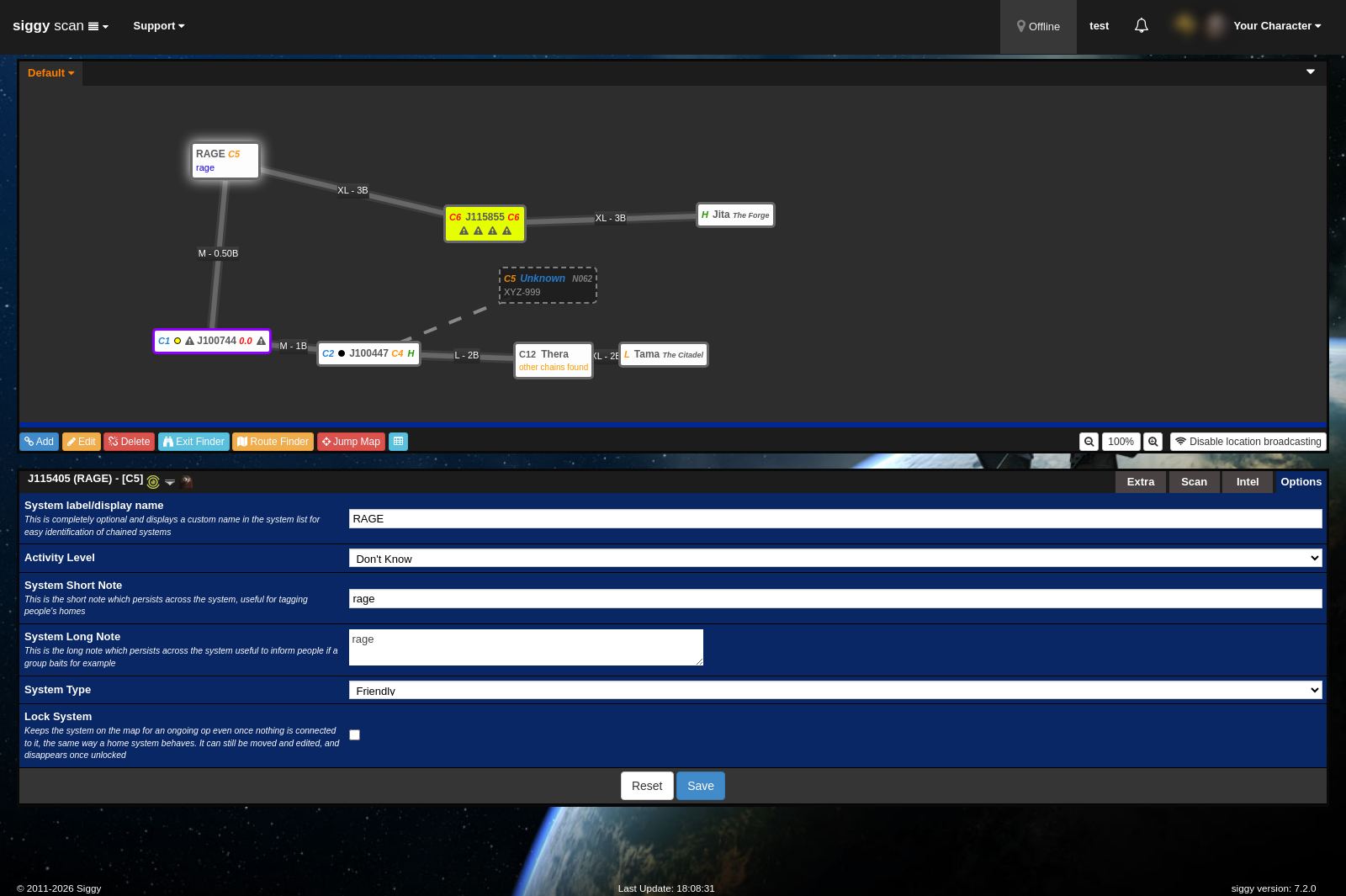
Clicking a system on Siggy will show you the system information and the intel for that system at the bottom of the screen.
This is broken up into four tabs, Scan, Intel, Extra and Options, which you can switch between in the top right of the system panel.
Scan
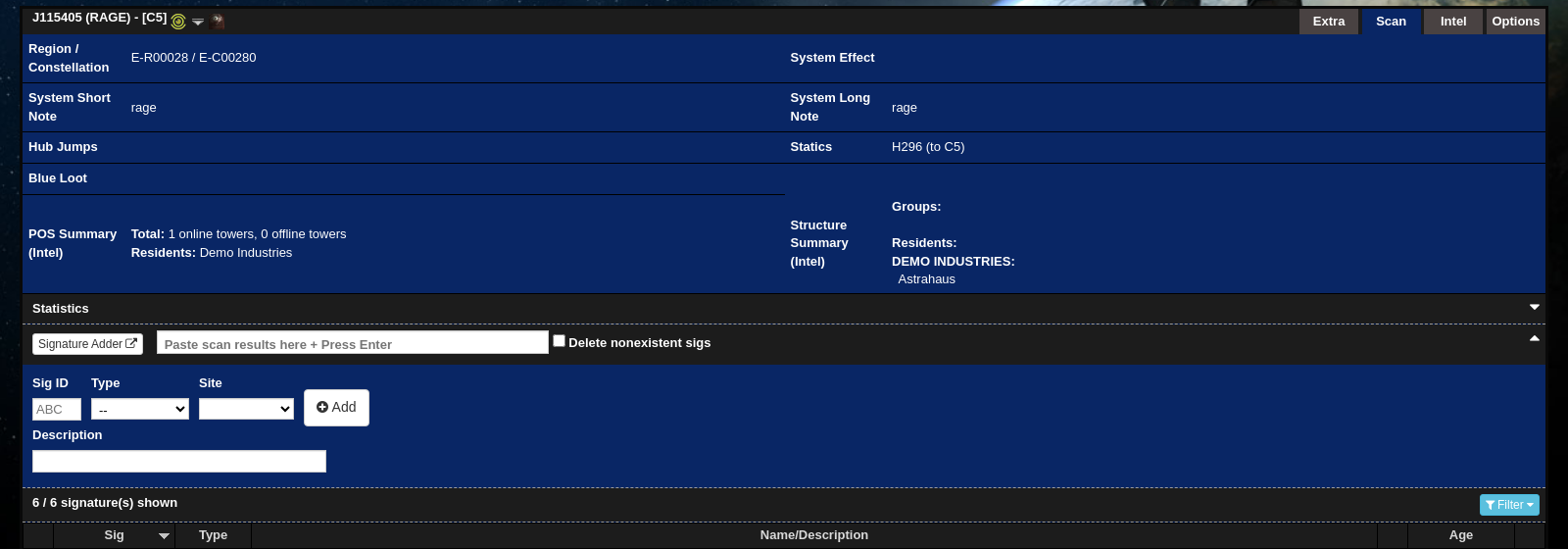
The scan tab is shown by default when you click a system, this shows the system information such as the system name, the mapped name, the system class, etc.
- The header shows the system name, the mapped name and the system class, the icons afterwards link to Dotlan and zKillboard. The layout is
System Name (Mapped name) - [class] - Region / Constellation the system is in.
- System Effect, if any.
- System Short Note and System Long Note, these are set when editing the system.
- Statics, if any, and where they lead.
- Hub Jumps shows the number of jumps to the nearest hub, with shortest and safest. We use Jita and Amarr by default but others may be added for deployments etc.
- Blue Loot shows the closest systems for blue loot buyback.
- POS Summary and Structure Summary list any POSes and structures added on the Intel tab, with the residents and structure type.
- Signatures and the signature adder, these are covered in the next section.
Statistics
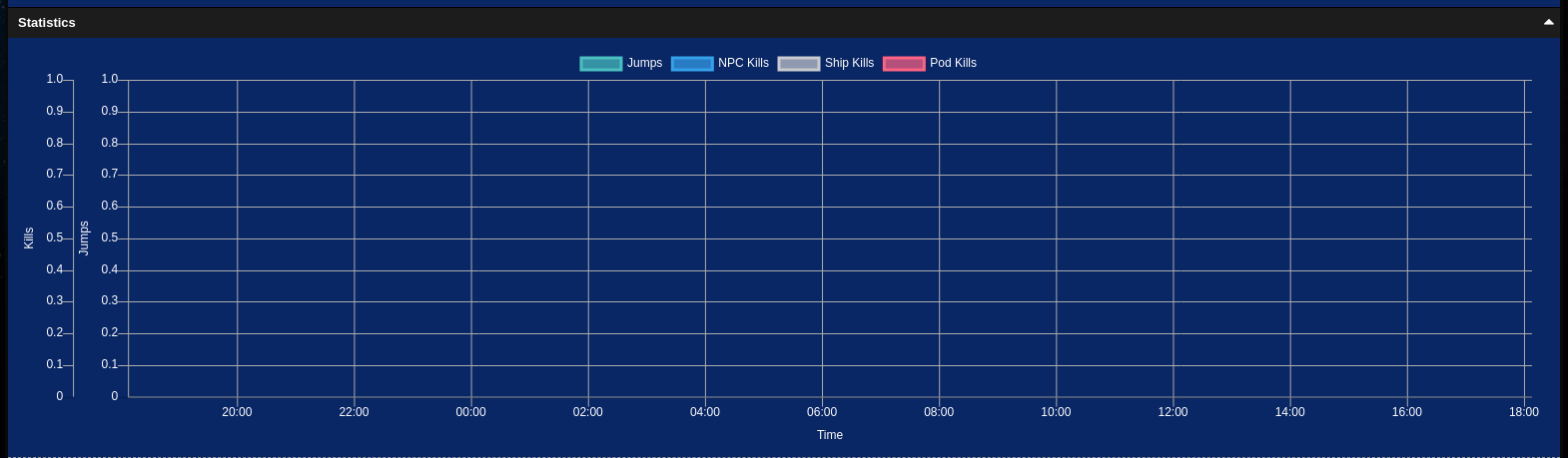
Expanding Statistics shows a graph of jumps, NPC kills, ship kills and pod kills in the system over recent hours. This is useful for seeing if a k-space system is busy before you go through it.
Signatures
Adding signatures
The quickest way to add signatures is to copy them from the in-game probe scanner window and paste them into the box that says Paste scan results here + Press Enter.
- Select the signatures in the probe scanner and press Ctrl+A, then Ctrl+C
- Click the paste box and press Ctrl+V
- Press Enter
Ticking Delete nonexistent sigs will remove any signatures that are on Siggy but not in what you pasted, which is useful for clearing out old sigs after a downtime.
You can also add a single signature by hand with the Sig ID, Type, Site and Description boxes then pressing Add.

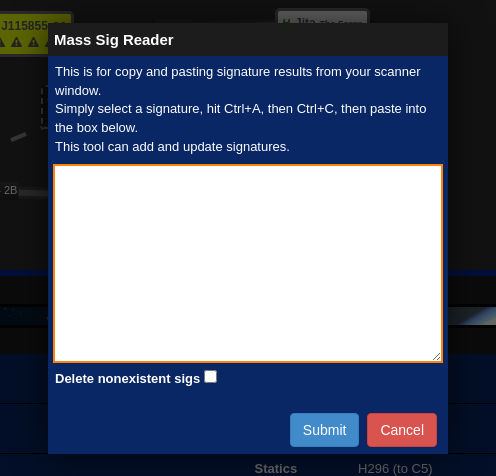
Clicking the Signature Adder button opens the Mass Sig Reader, which does the same as the paste box but in a larger window.
If Enable paste sig anywhere is turned on in your settings, you can paste signatures anywhere on the page without clicking the box first.
Reading signatures
- The count above the table shows the amount of signatures in the system that we have recorded. This allows for easy comparison to the count in-game.
- Filter by type will filter the signatures by type. This allows you to see specific types such as wormholes.
- The pencil button will allow you to edit the signature. This is covered in Editing a signature.
- Sig shows the signature ID, it should match your probe scanner in game.
- Type shows the signature type such as WH for wormhole.
- Name/Description shows the signature name and description. Depending on the site this may show different information such as the WH type, the name, and where it leads to.
- The information button shows who added the signature, when it was last edited, and when it was added.
- Age shows the age of the signature, along with how long it has before it will expire if it's a wormhole.
- The red cross deletes the signature from the system.

Editing a signature
Clicking the pencil button opens the signature for editing in the table.
- Signature ID, it should match your probe scanner in game. It's read when you paste signatures, this allows you to edit the signature if needed.
- Signature type such as WH for wormhole.
- Wormhole type, the short code when you land on the wormhole such as C008.
- Wormhole destination, the system the wormhole leads to, based on what's mapped in Siggy.
- Signature name or description, you can put information here such as C5a although that should be shown once the destination is set.
Press the save button at the start of the row to save the changes.

Intel
The Intel tab lists the structures and POSes that have been found in the system.
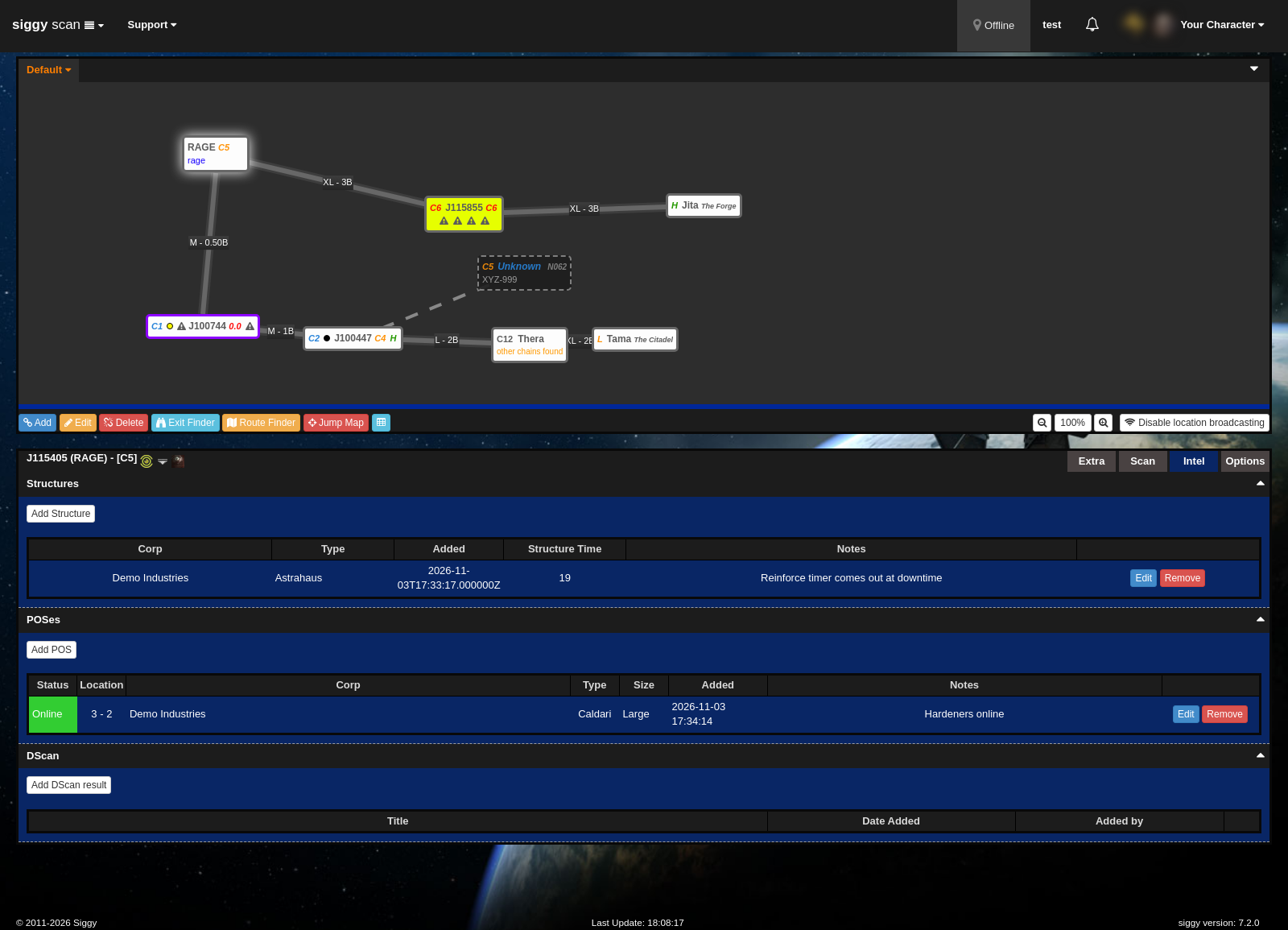
Structures
Pressing Add Structure opens a window to record an Upwell structure.
- Group Owner: The intel group the owner belongs to, if any.
- Corporation: The corporation that owns the structure.
- Structure: The structure type e.g. Astrahaus, Fortizar, Ansiblex.
- Notes: Anything useful such as timers or what it was doing.
- Hours: The hour its timers fall on, shown as Structure Time in the table.
- Fits: Paste the fitting from a ship scan, Siggy will read it.
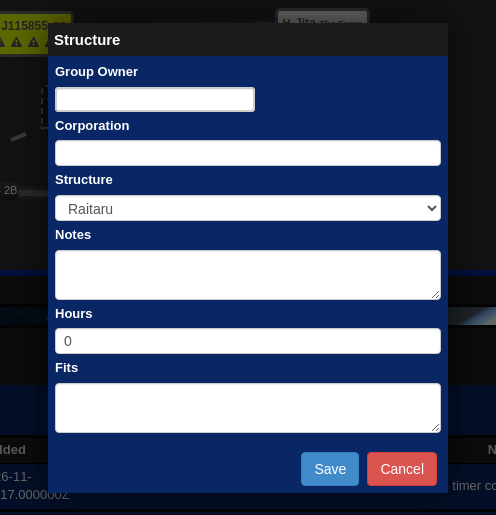
Each structure in the table can be edited or removed.
POSes
Pressing Add POS opens a window to record a POS.
- Planet and Moon: Where the POS is e.g. planet 3 moon 2.
- Owner: Who owns the POS.
- Faction: The tower faction e.g. Caldari, Dread Guristas.
- Size: Small, Medium or Large.
- Status: Online or Offline.
- Notes: Anything useful such as the defences.
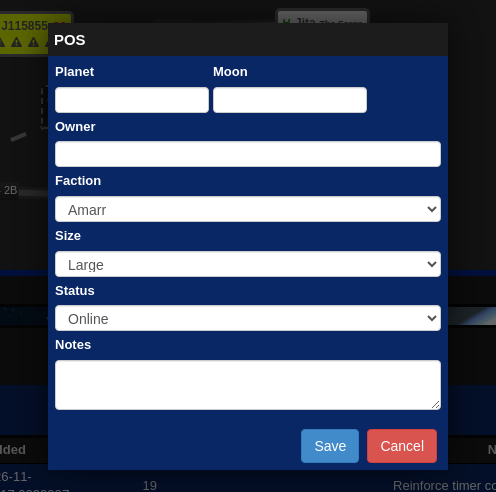
Extra
The Extra tab shows the cosmic anomalies and signature sites you can expect for the system's class, grouped by type. This is useful for knowing which crab sites are worth running.
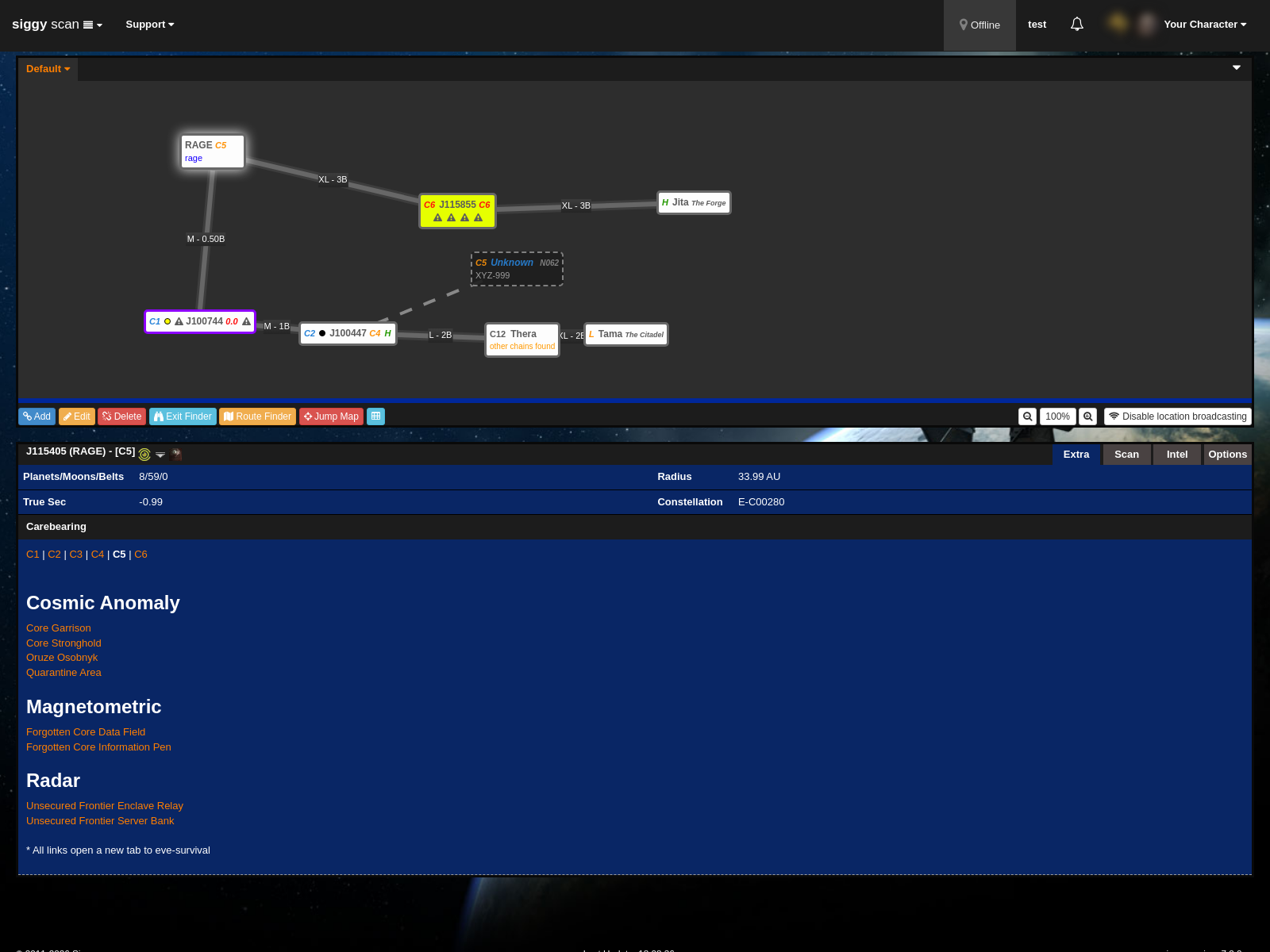
Options
The Options tab is the same as editing the system from the map, it lets you change the label, activity level, notes, system type and lock the system without right clicking.