newUI windows
Everything except the map itself lives in windows. Most of them show information for the system selected on the map, so clicking a different system updates them. How to move, resize and show windows is covered in Getting started.
System info
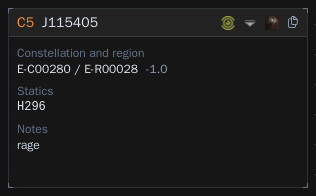
The class, name and display name of the selected system, along with its constellation and region, statics, effect, permanent note and description.
The buttons in the title bar open the system on Dotlan, zKillboard or Anoik.is, or copy its name.
Local
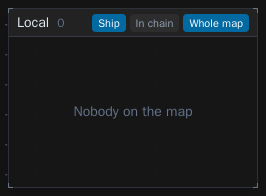
The pilots in the selected system. The buttons in the title bar change what's shown:
- Ship: Show the ship each pilot is flying.
- In chain: Show everyone anywhere in the chain.
- Whole map: Show everyone anywhere on the map, including systems that aren't connected.
Clicking the system next to a pilot selects it on the map.
Signatures
The signatures in the selected system, the same as the scan tab on the classic map. The title shows the system you're looking at.
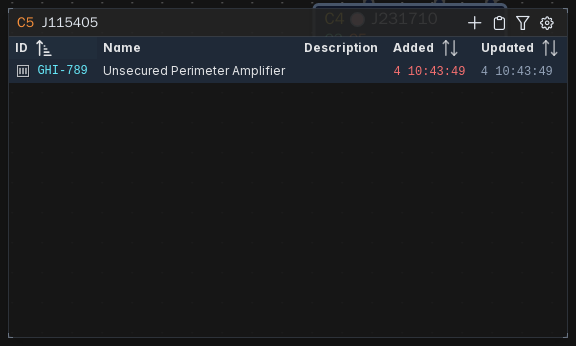
- ID: The signature ID, with an icon and colour for the group.
- Name: The site name, or the wormhole type and where it leads if it's linked to a connection.
- Description
- Added and Updated: How long ago. Hover over it to see who added or updated it and when.
Adding signatures
- Copy your probe scanner in EVE and press Ctrl+V anywhere on the page. This needs
Paste signatures anywhereturned on in Settings. - Or press the clipboard icon in the title bar and paste into the box.
- The plus icon adds a single blank signature.
To clear out signatures that have despawned, press the cog in the title bar and tick Delete signatures not in a paste. Every paste then removes the signatures in the system that aren't in it, but their wormhole connections stay on the map. The cog turns amber while this is on. The same option is in the paste box as Delete signatures not in this paste, and it's remembered in your browser.
Filtering signatures
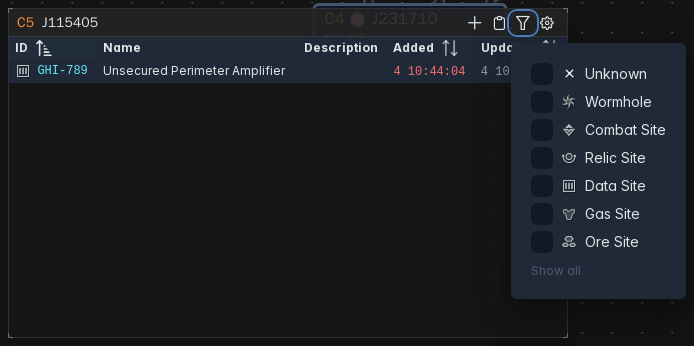
Press the filter icon in the title bar and tick the groups you want to see, such as Wormhole only. Show all clears the filter. The icon turns blue while a filter is on, and the filter is remembered in your browser.
Selecting signatures
Click a signature to select it, or hold Ctrl or Shift to select more than one. After clicking in the window, Ctrl+A selects every signature shown. The bar above the table lets you copy, edit or delete the selected signatures. Pressing Delete also deletes them.
Undoing a delete
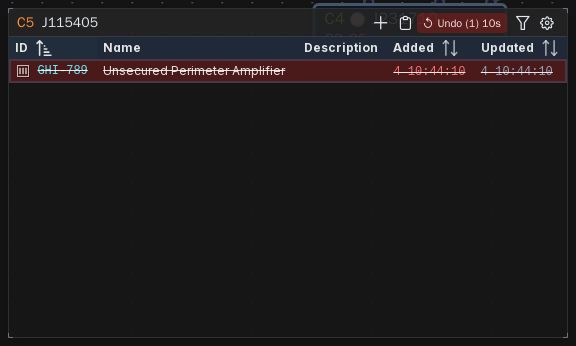
Deleted signatures stay in the list for 10 seconds, shown in red and struck through, and an Undo button with a countdown appears in the title bar. Press it to bring them back. This works for single deletes, deleting several at once and signatures removed by a paste.
Editing a signature
Double click a signature, or select it and press the pencil, to open Signature Edit.
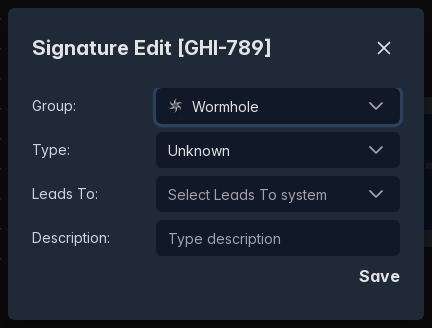
- Group: Unknown, Wormhole, Combat Site, Relic Site, Data Site, Gas Site or Ore Site.
- Type: The site or wormhole type. Statics for the system are listed first.
- Description
For wormholes there's also:
- Leads To: Link the signature to a connection from this system. Pick
New system...and type the system name to add the connection and link it in one go. - Lifetime, Mass status and Temp. Name: Shown once
Leads Tois picked. Set the connection's EOL, mass and the display name of the system it leads to.
Press Save to keep your changes.
Routes
How many jumps it is from the selected system to your favourite destinations, with the route drawn as coloured security dots. By default it lists the main trade hubs.
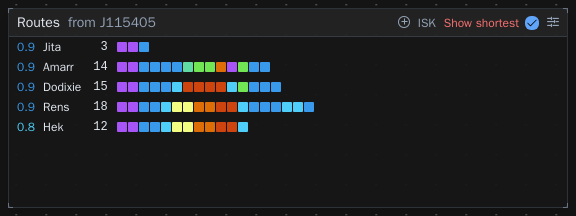
- Plus icon: Add a destination.
- ISK: Show the nearest 5 blue loot buyers instead.
- Show safest / Show shortest: Switch between the safest route and the shortest route.
- Sliders icon: Choose whether routes can use mass critical, EOL and frigate holes and Thera connections, or avoid wormholes and Pochven altogether.
Right clicking a destination, or any system along the route, gives you Set destination and Add waypoint, each for all characters or for the characters you pick. Hovering over a destination shows a cross to remove it.
Your destinations are saved in your browser.
Structures
The structures and POSes in the selected system, the same as the intel tab on the classic map.
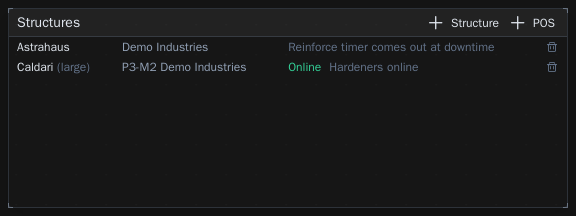
+ Structure: Add a structure. The fields are Structure type, Owner corporation, Intel group, Vulnerability hours, Notes and Fitting scan, which is optional.+ POS: Add a POS. The fields are Planet, Moon, Owner, Tower type, Size, Online and Notes.
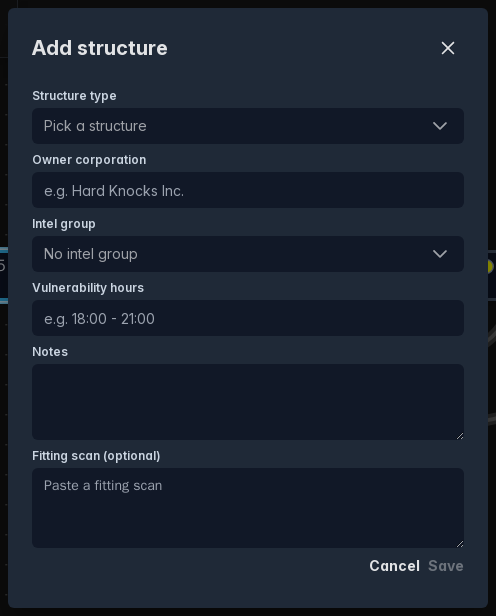
Click a row to edit it, or press the bin to delete it.
Kills and jumps
Ship kills, pod kills, NPC kills and jumps in the selected system for each hour of the last 24 hours, with a total at the bottom.
Kill feed
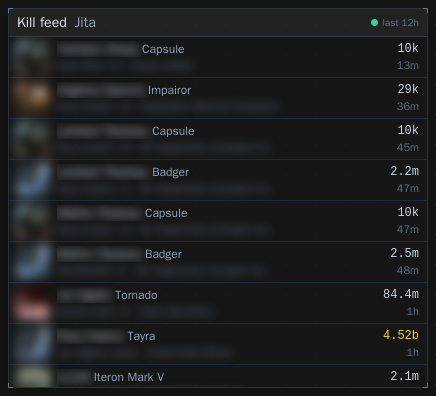
The last 10 kills on zKillboard in the selected system over the last 12 hours, checked every minute. Each kill shows the victim, their ship, the final blow, the number of attackers, the ISK value with kills over 1b highlighted, and how long ago it happened. Click a kill to open it on zKillboard. The dot in the title bar turns red if zKillboard can't be reached.
Notes
The long notes for the selected system. Type your notes and press Ctrl+Enter or the save icon.
Jump log
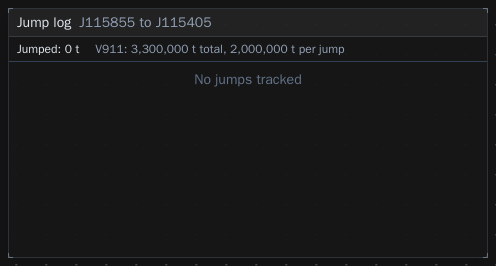
Click a wormhole on the map to see who has jumped through it, with their ship, its mass and when they jumped. The total mass jumped is shown at the top along with the wormhole's total mass and mass per jump if the type is known.
Thera and Turnur exits
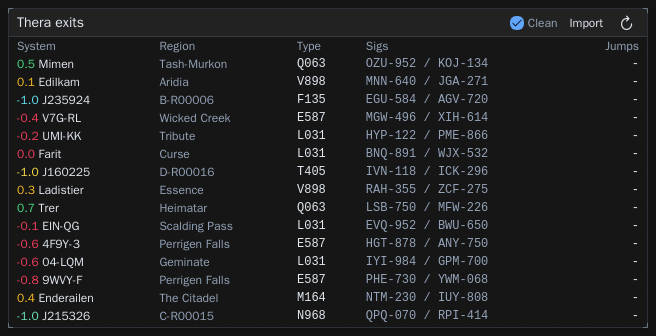
The current Thera or Turnur connections from EVE-Scout, with their system, region, wormhole type, sig IDs and how many jumps they are from the selected system.
Press Import to add them to your chainmap. Tick Clean first to remove the old connections before importing.
Route finder
Find a route that can use the wormholes on your chain.
- From: The start system. Leave it blank to use your current location.
- To: Where you're going.
- Avoid systems: Type a system and press Enter after each one.
- Shortest or Safest
Press Find to show the route. Right clicking a system in the route gives you the same Set destination and Add waypoint options as Routes.
Exit finder
Type a system and press Find to list the chain's k-space exits closest to it, by shortest or safest route.
Scanned systems
Every system your group has signatures stored for, with the region and when signatures were last added. Type in Filter to narrow it down, and click a system to select it on the map.
Notifications
The latest notifications, such as a notifier finding a system or a Siggy announcement. The right bar shows how many there are, and the tick in the title bar marks them all read.
My notifiers
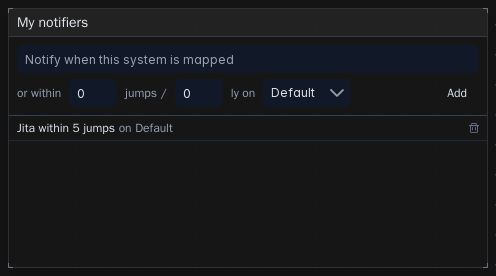
Your notifiers, the same as the classic notifiers. To add one, type the system to watch, optionally set how many jumps or light years from it should also count, pick the chainmap and press Add. Press the bin to delete one.