Siggy settings
There are two places on Siggy where you can change settings, these are the Scan Settings and the User Settings.
Scan settings are under the left side drop down, while user settings are under the top right drop down and will redirect you to the settings page.
Scan Settings
Click siggy scan in the top left corner and select Settings.
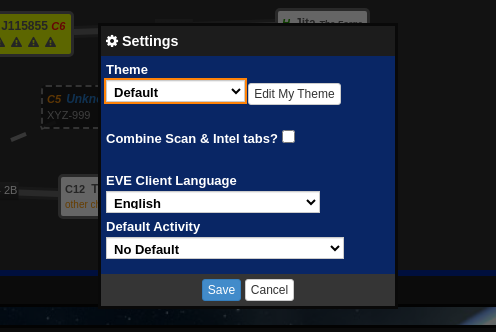
- Theme, this will change the theme of the map, we have a few options available. You can also pick
My Themeto use your own, see Themes.Edit My Themeopens the theme editor. - Combine Scan and Intel, this will combine the scan and intel tabs into one tab in the system information at the bottom of the page.
- EvE client language, this is a rather deprecated setting but it's used when you paste data from in-game e.g. signatures. If you would like a language added please reach out to IT.
- Default activity, this will set the page Siggy opens on when you load it up, by default it will take you to the mapper.
User Settings
Click your character name in the top right corner and select Settings.
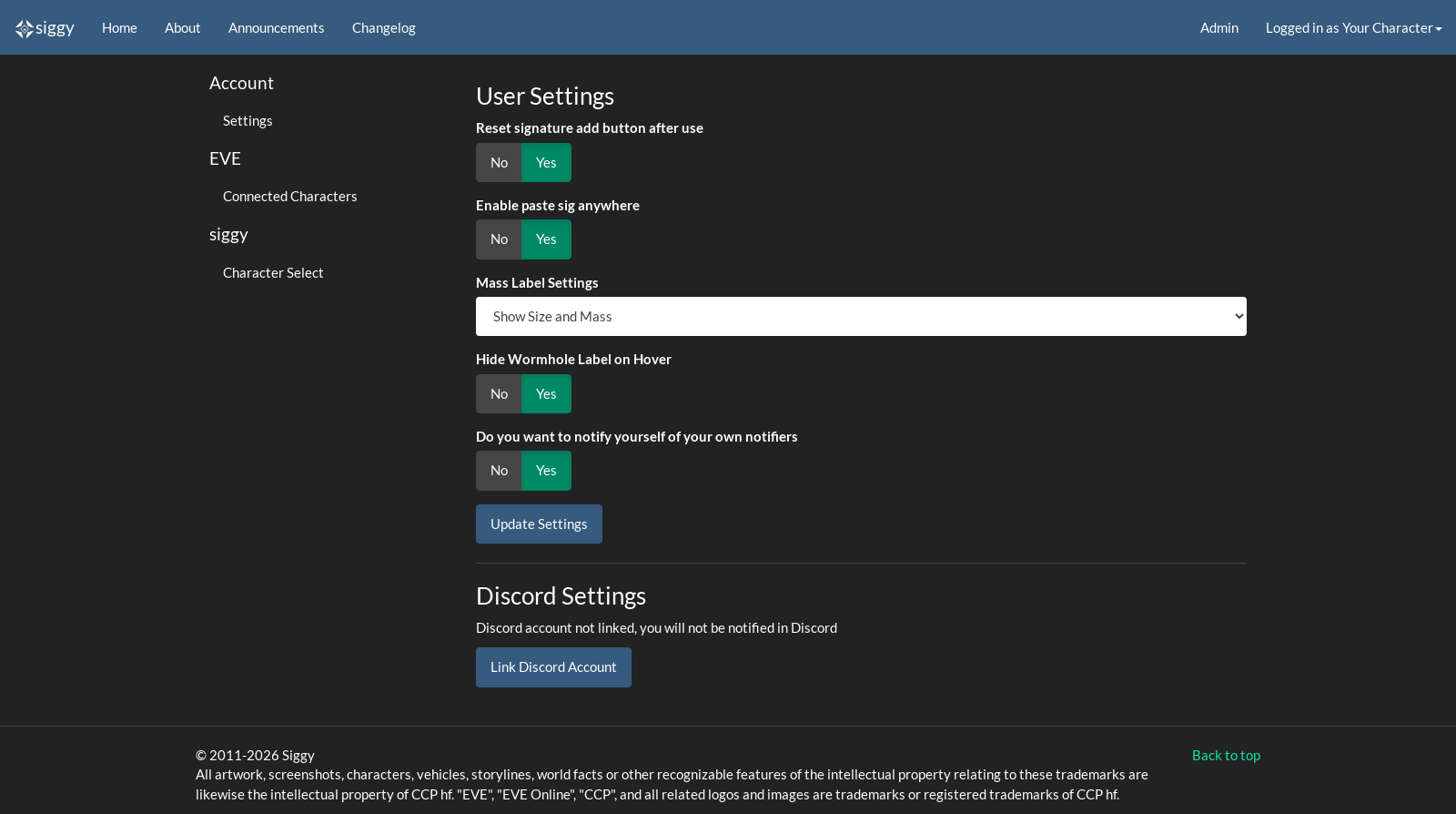
- Reset signature add button after use, clears the single signature adder once you've added a signature.
- Enable paste sig anywhere, lets you paste signatures anywhere on the scan page without clicking the paste box first.
- Mass Label Settings, changes what the label on each connection shows, such as the size with the mass.
- Map To Load, which map opens when you load Siggy, Classic or newUI.
- Hide Wormhole Label on Hover, hides the connection labels while you hover over the map so they don't get in the way.
- Do you want to notify yourself of your own notifiers, sends you a Discord message even when it was you that triggered the notifier.
- Contract notifications on Discord, turns on Discord DMs for your contract notifications.
Press Update Settings to save.
Discord
Linking your Discord account lets Siggy send your notifiers and contract notifications to you on Discord. Press the link button under Discord Settings and log in to Discord. If you change Discord accounts, link it again.
Characters
The Character Select and Connected Characters pages on the left are covered in Getting started.