The newUI map
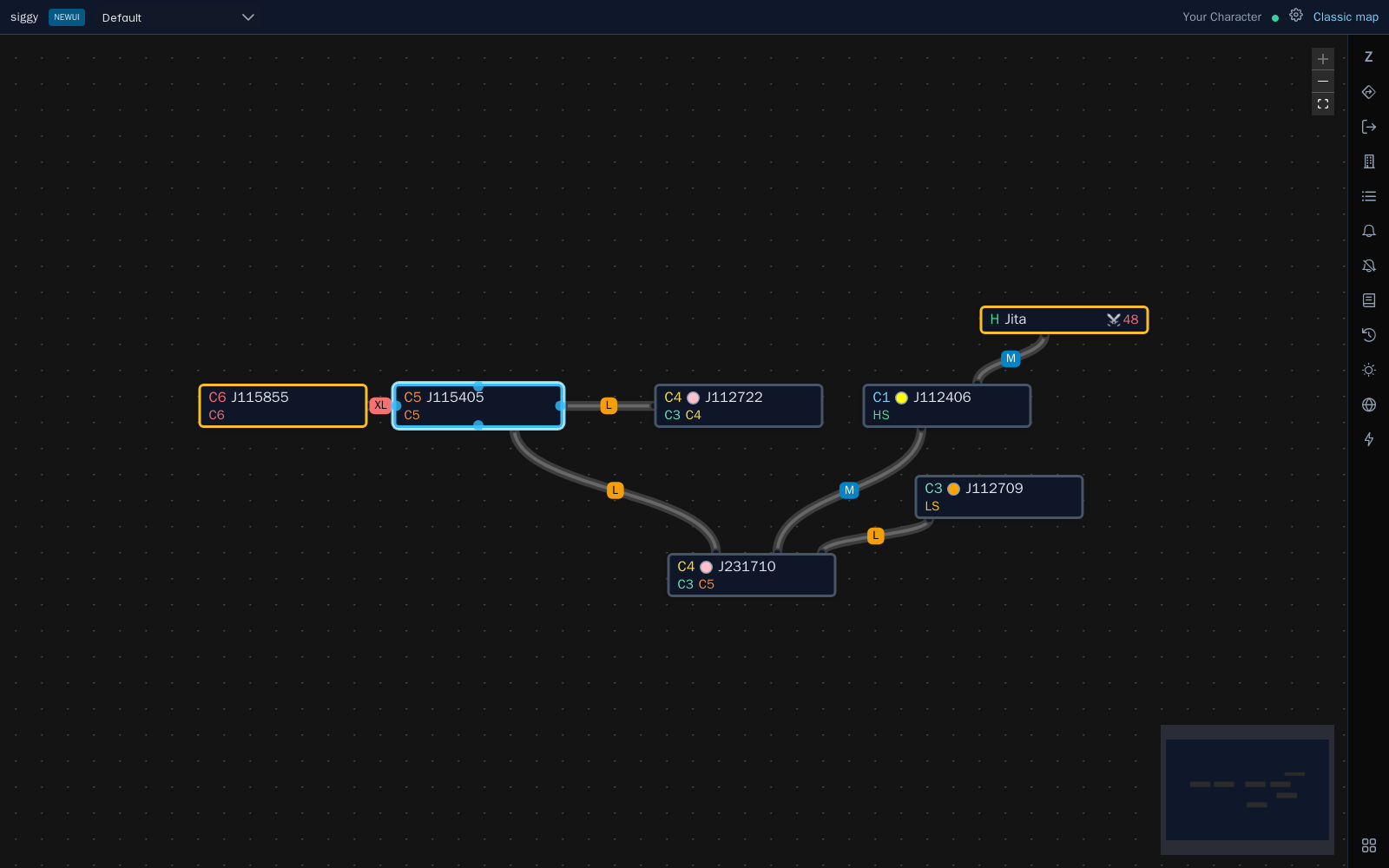
The map works the same way as the classic map: it shows every system in the chain and the connections between them. Clicking a system selects it and the windows show its information.
Moving around
- Drag empty space to move the map and use the mouse wheel to zoom.
- The buttons in the top right corner zoom in, zoom out and fit the whole chain on screen.
- The mini map in the bottom right corner shows the whole chain. You can drag and zoom it too.
- Drag a system to move it. Positions are saved for everyone using newUI on that chainmap.
How systems look
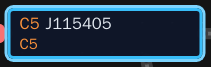
Top line
- System class: e.g. C5, H, L or N, coloured by class.
- Effect: A coloured dot after the class, using the same colours as the classic map: Black Hole black, Pulsar blue, Wolf-Rayet orange, Magnetar pink, Cataclysmic Variable yellow and Red Giant red. Hover over it to see the effect name.
- Shattered: A diamond after the class.
- Name: The display name if the system has one, otherwise the system name.
- Kills: A red kill icon with the number of ships killed in the last 2 hours.
- Pilots: A blue box with the number of pilots in the system. Hover over it to see who.
- Import: A download icon when connections can be imported from other chains, see Import chain.
- Lock: A padlock if the system is locked.
Second line
The real system name if the system has a display name, its statics, and the permanent note in yellow.
Statics are shown as the class they lead to, in that class's colour, e.g. C5, HS, LS, NS, T for Thera, C13, D for drifter and P for Pochven. Hover over them to see the wormhole types.
Flags
Flags are shown along the bottom of the system:
- Return home: Three home icons.
- Rally: Green
Rallyflag, and the system turns green. - Hazard: Red
Dangerflag, and the system turns red. - Hostile home: Red
Hostileflag. - NPC kills: The number of NPCs killed in the last 2 hours, only in null sec.
The border colour shows the system's status, the system you're in pulses, and the selected system has a blue outline. Hovering over a system shows its short and long notes.
Connections
Connections are drawn the same way as the classic map, with a label showing the size and mass e.g. XL - 3B. What the label shows can be changed with Mass label in Settings.
- Grey: A normal wormhole.
- Yellow and red inner line: Mass reduced and mass critical.
- Pink and red outer line: EOL 4 hours and EOL 1 hour.
- White outer line: Frigate hole, which turns light blue and dark blue when EOL.
- Dashed lines: Stargates, jump bridges and cynos, each with their own colour.
The outer line is drawn thick so EOL, expired and frigate holes stand out at a glance.
When two systems sit right next to each other, the connection is drawn as a short loop between them so it stays visible.
Hovering over a connection shows its details, such as when it was added and when it was set EOL. Clicking it selects it and shows its jumps in the Jump log.
Adding a connection by dragging
Hover over a system and drag from one of the small dots on its edges to another system. This adds a wormhole between the two.
Map right click menu
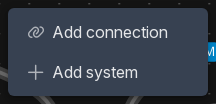
Right clicking empty space on the map gives you:
- Add connection: Opens the add connection window.
- Add system: Adds a single system where you clicked. Start typing the name and pick it from the list.
Add connection
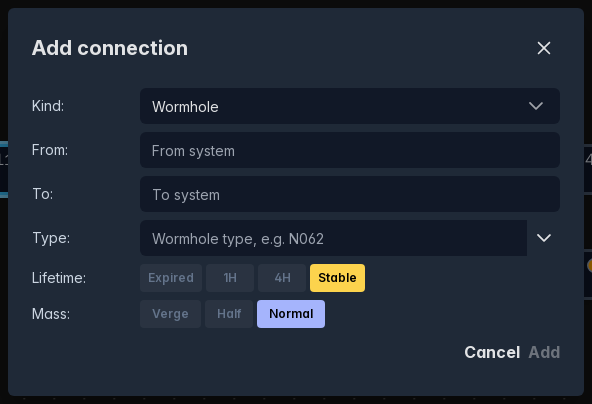
- Kind: Wormhole, Stargate, Jump bridge or Cyno.
- From and To: The two systems to connect.
Options for wormholes:
- Type: The wormhole code e.g. N062. The list suggests the wormholes that can spawn from the From system.
- Lifetime: Expired, 1H, 4H or Stable.
- Mass: Verge, Half or Normal.
Frigate holes are set afterwards from the connection right click menu.
System right click menu
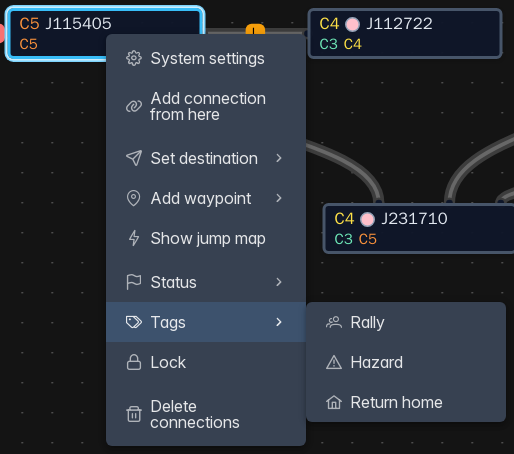
- System settings: Opens the system settings window, see below.
- Add connection from here: Opens the add connection window with this system filled in.
- Set destination and Add waypoint: Each has two options,
All charactersorCharacters…to pick which of your characters it's sent to in EVE. Your pick is remembered, and shared with the classic map. - Show jump map: Opens the jump map. For a wormhole system it opens with that system as home.
- Status: No status, Friendly, Hostile, Hostile home or Empty. This sets the border colour, and the current status is ticked.
- Tags: Rally, Hazard and Return home. Tags that are already set are ticked, and picking one again clears it.
- Lock / Unlock: Keeps the system on the map even when its connections are removed.
- Import chain: Only shown when other chains are found, see below.
- Delete connections: Removes the system from the map along with every connection to it. Locked systems are unlocked first. This can be undone, see Undoing a delete.
System settings
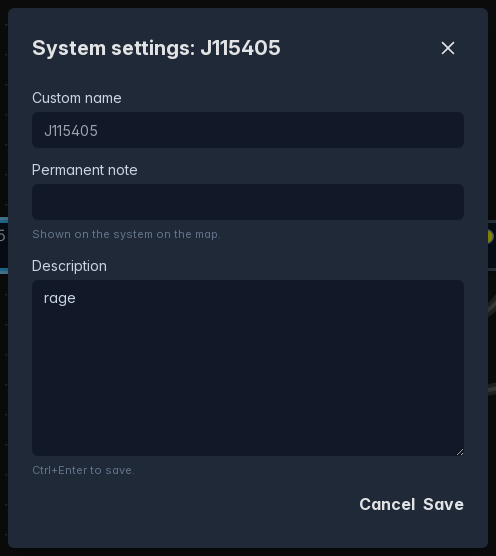
- Custom name: The display name of the system. Leave it blank to use the system name.
- Permanent note: Shown on the system on the map.
- Description: The long note for the system. Press Ctrl+Enter to save.
Press Save to keep your changes. Clearing a field and saving removes it.
Import chain
If the same system is on another chainmap, or it's Thera or Turnur, Import chain lists where the connections can be imported from. Each one has two options:
- Import: Copies the connections onto your map.
- Import keeping names: Also copies the display names from the other chain.
Selecting more than one system
Hold Shift and drag over empty space to draw a box around systems, or hold Ctrl and click them. Unknown jumps inside the box are selected too. Right clicking the selection shows how many systems and unknown jumps are selected and Delete connections, which removes all of them at once. Dragging a selected system moves the whole selection.
Undoing a delete
When you delete a system, a selection of systems or clear connections, they disappear straight away and a popup in the bottom left corner counts down from 10 seconds. Press Undo before it runs out to bring them back. Each delete gets its own popup. If you close the page during the countdown the delete still goes ahead.

Connection right click menu
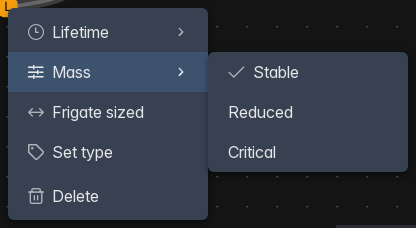
- Lifetime: Expired, 1H, 4H or Stable. The current lifetime is ticked.
- Mass: Stable, Reduced or Critical. The current mass is ticked.
- Frigate sized / Not frigate sized
- Set type: Pick the wormhole type from a searchable list. It only lists the types that can connect those two systems, tick
Show all typesfor the full list. - Signature: Link the connection to one of the signatures in the selected system, see below.
- Delete
Stargates, jump bridges and cynos only have Delete.
Linking a signature
When one end of the connection is the selected system and it has wormhole signatures, Signature lists them. Pick one to link it to the connection, and the Signatures window will show where it leads. If the connection has no type yet, it takes the type from the signature. Signatures already linked to a different connection are marked (linked elsewhere). Pick Unlink to remove the link.
You can also link signatures from the Signatures window.
Automatic linking when you jump
When you jump through a new wormhole, Siggy links the matching signature in the system you left to the new connection, if it can tell which one it is. It uses your most recent signature paste, so if more than one signature could be the one you jumped, nothing is linked and you can link it yourself from the connection's right click menu. This works on the classic map too.
Unknown jumps
Unknown jumps added on the classic map are shown in newUI as a dashed box with the sig ID, wormhole code and class. They can be dragged around, and right clicking one lets you delete it. Adding and editing them is done on the classic map.