Getting started with newUI
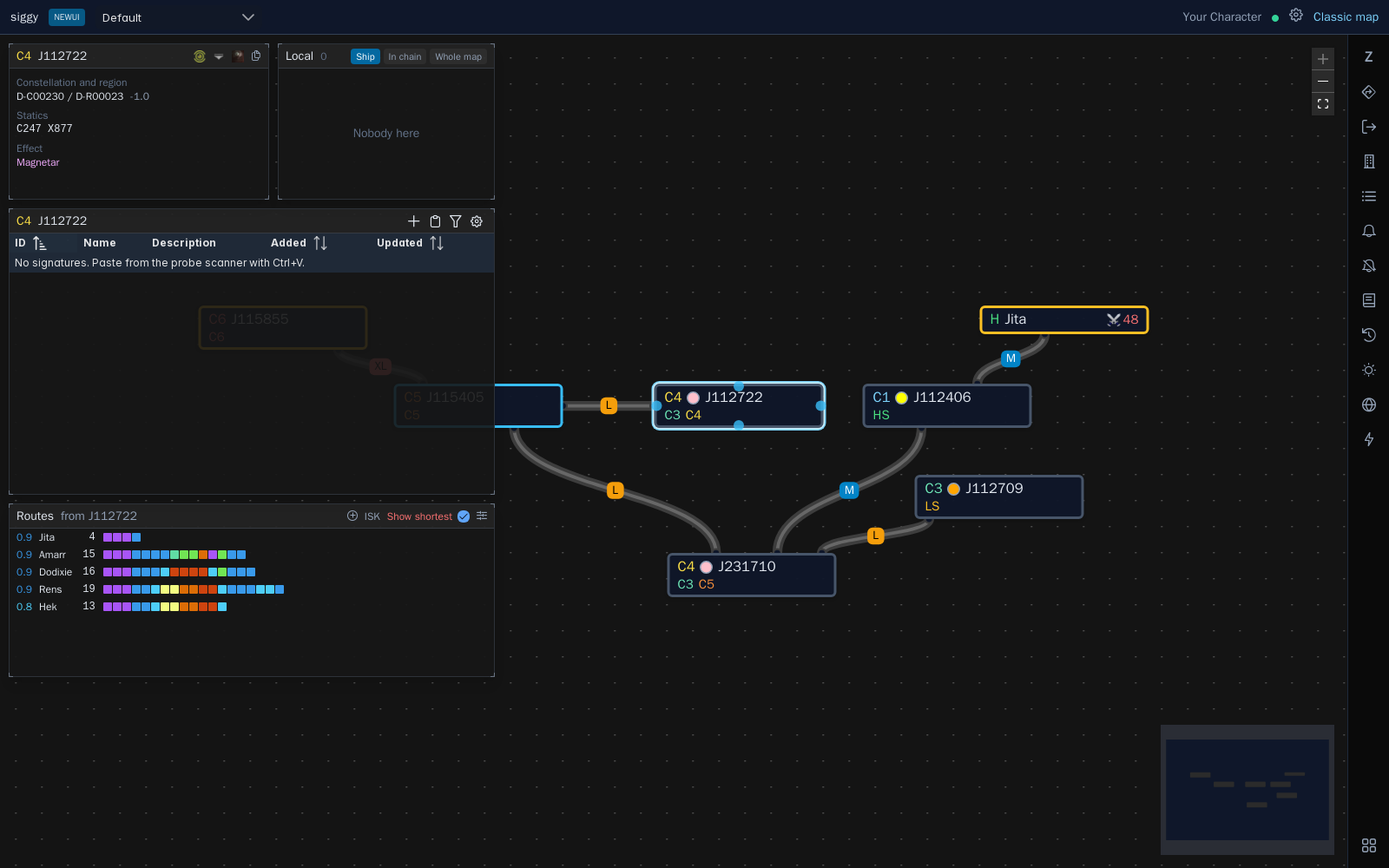
newUI is the new Siggy map, currently in beta. It uses the same chainmaps, signatures and intel as the classic map, so anything you map in one shows up in the other. The difference is the layout: the map fills the whole screen and everything else lives in windows you can move around on top of it.
Opening newUI
From the classic map, open the siggy scan menu in the top left corner and press New map (beta).
To always open newUI when you load Siggy, set Map to load to newUI in Settings. You can still get to the classic map at any time with the Classic map link in the top right corner.
System positions are saved separately for each map, so moving systems around in newUI won't move them on the classic map.
The top bar

- Chainmap: Switch between the chainmaps you can see, the same as the chainmap drop down on the classic map.
- Current location: The system you're in. Click it to select it on the map.
- Character name: The character you're using Siggy as.
- Live dot: Green when live updates are connected, amber when Siggy is falling back to checking for updates.
- Cog: Opens Settings, your characters and contract notifications.
- Classic map: Takes you back to the classic map.
The right bar
The bar down the right hand side opens and closes windows with one click. The icon is highlighted while the window is open.

- Z: Kill feed from zKillboard
- Route finder
- Exit finder
- Structures
- Scanned systems
- Notifications, with a count of new notifications
- My notifiers
- Notes
- Jump log
- Thera exits
- Turnur exits
- Lightning bolt: Opens the jump map
Each of these is covered in Windows.
Windows
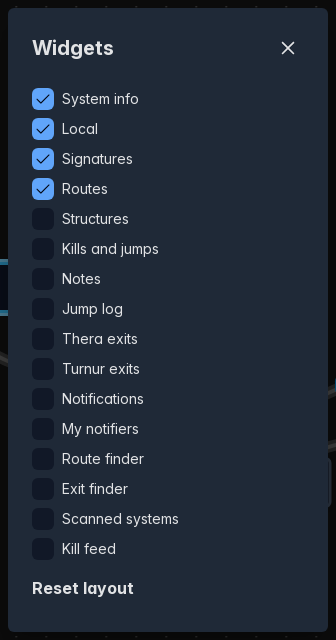
Everything that was in the panels under the classic map is now a window on top of the map. By default you get System info, Local, Signatures and Routes.
- Drag a window by its title bar to move it. Windows snap to each other and to the edges of the map.
- Drag any corner to resize it.
- Press the squares icon at the bottom of the right bar to pick which windows are shown.
Reset layoutputs every window back where it started.
Your layout is saved in your browser, so each computer you use can have its own.
Messages
Messages such as "Settings saved" or errors pop up in the bottom left corner and disappear after a few seconds.